TeleTraff: How to set up automation in TeleTraff?
Automation saves a launch scenario and repeats it on a schedule or on a condition, so you watch a log instead of starting the job by hand every time.
The section overview lives on the automation page.
What you need beforehand
Section titled “What you need beforehand”- A task you have already run manually and whose result you understand.
- Free accounts at the moment it fires. A schedule does not create accounts — if the fleet is busy at that hour, the run will not happen.
How to set it up
Section titled “How to set it up”-
Choose a supported task and its parameters.
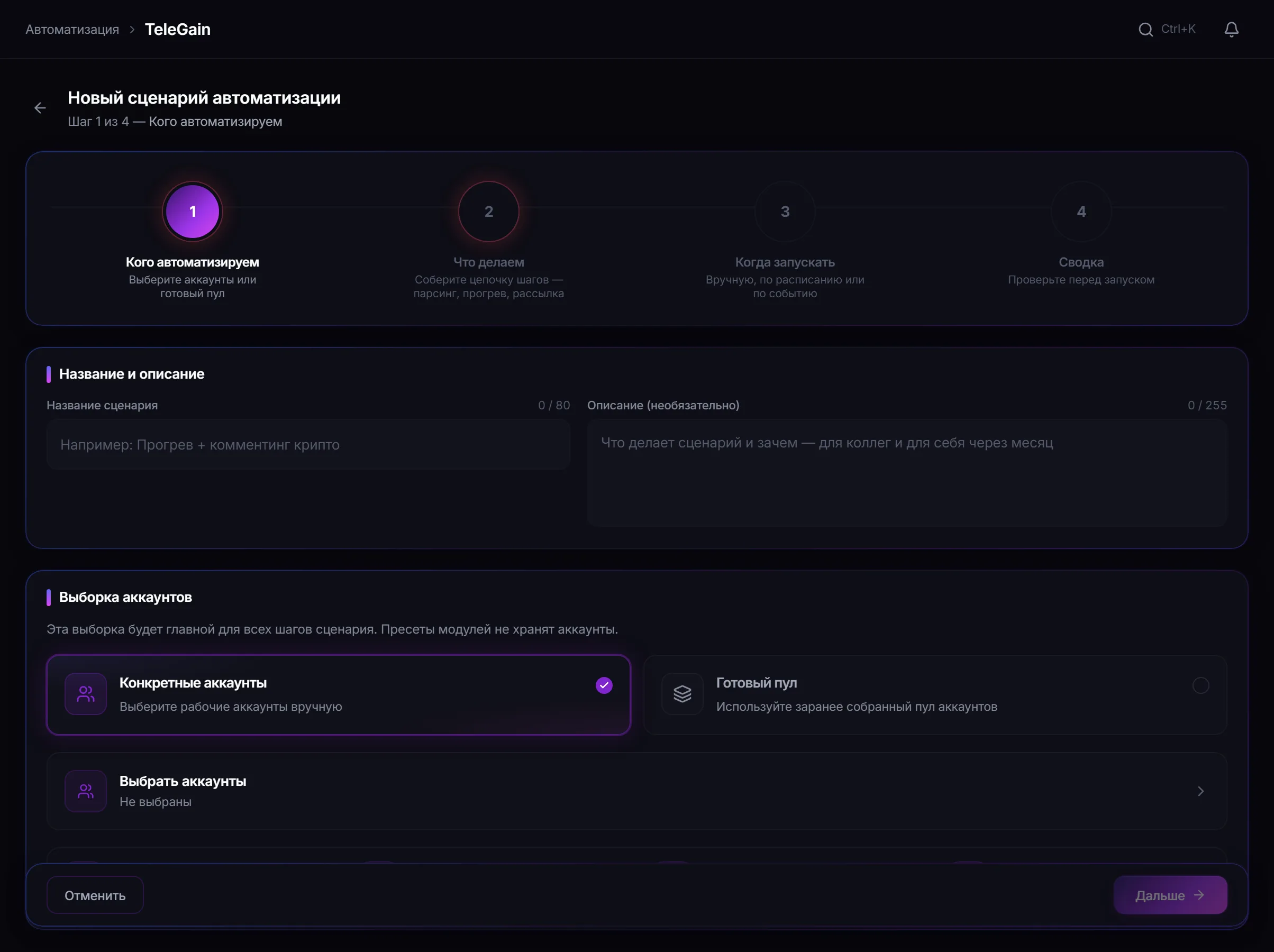
Automation wizard: choosing the task, trigger conditions and schedule. -
Set the conditions and the schedule.
-
Check the configuration before enabling the scenario.
-
Enable it and watch the run log.
Every firing appears as a separate entry — with its result, not just the fact that it started.
What is worth automating
Section titled “What is worth automating”| Scenario | Why it fits |
|---|---|
| Regular warmup of the reserve | preparation needs no involvement from you |
| Periodic dataset collection | the audience refreshes without a manual start |
| Watching for new posts | this needs a continuous rather than one-off mode |
One-off campaigns where you check the result by hand are usually not worth automating: the saving does not offset the risk of repeating a mistake many times over.
Common mistakes
Section titled “Common mistakes”| Mistake | What happens |
|---|---|
| Automating an unverified scenario | the mistake repeats regularly and unobserved |
| A schedule that ignores fleet occupation | the run does not happen, the accounts are busy |
| Firing too often | the load on accounts grows faster than the result |
| Enable and forget | the log exists precisely so that someone looks at it |
Limits and platform rules
Section titled “Limits and platform rules”Regularity makes automation more visible to the platform than a one-off run: identical actions at the same time form a recognisable pattern. Telegram’s rules apply exactly as they do to a manual launch. See Security.
Which tasks can be scheduled? The panel shows the supported tasks during selection. The list depends on the module.
What if the accounts are busy when it fires? The run does not happen — a schedule does not free accounts. This is visible in the log.
Can a scenario be disabled without deleting it? Yes, a scenario is enabled and disabled separately from its configuration.
Where can I see what happened? In the run log: every firing is recorded with its result.
Related guides
Section titled “Related guides”- How to read job and account statistics? — assessing results over time
- How to warm up Telegram accounts? — a frequent scheduling candidate
- Troubleshooting
Official section page: Task automation